
Document management in SharePoint is a huge topic and in general it's most important feature of the platform. In previous post you could read about "SharePoint Information Architecture". And now I would like to to continue in more practical way.
Of course you can find a lot of white papers or how to's how to manage documents, for example at Technet or Office pages. But still, decisions taken here are very important from project point of view. Also it's important for end users as also for people who will make project implementation.
One of the most post popular approaches is to make SharePoint looks like file server, so we create a lot of folders inside folders. Well in this case, it's difficult to manage and difficult to find out where our documents are...

But it's super coll to someone who provide us a content, but for people who needs to find something or work on it it could be challenging. What are disadvantages in case of this approach?
- There's no metadata in general
- There's no navigation based on metadata
- No filters
- Too many clicks to get interesting content
On the other hand it's important to highlight about some advantages related to permissions management at folder level. Also document library which has been synchronized to local computer with OneDrive looks much better than library with metadata only
Document management - metadata instead of folders
This very good approach from end user point of view. In this case he can have flexible navigation, sorting, filtering, etc. Unfortunately from people who upload the content this case it's not easy to implement. They can't just do drag and drop, they have to add metadata, so upload process takes much more time. And in this case sometime people just enter anything to make the process fast... So we can get bigger mess than we wanted...
Those two options are leading us to summary that both groups have different needs in case of document management. So how we can make happy both of them?
Group is better
It seems that the best option here is using both solution together in case of document management. I am using it by myself and it works perfect for me. What we can do? Let's create a few columns which will contains important metadata. As you can see below I just have two columns: supplier (dostawca) oraz document type (typ dokumentu). And first column is metadata type. In the next step we have to design structure of our folders. We have think about for a while as it's very important.
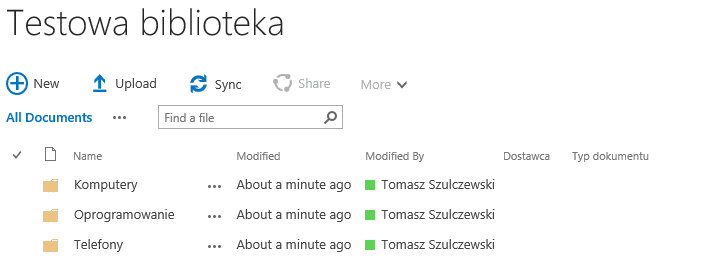
As you can see in my case it't very simple. In each folder I have created a few sub folders. And that's all. Now it's time to use very powerful SharePoint feature called Change default column values. I don't know why this option it's not used to often.
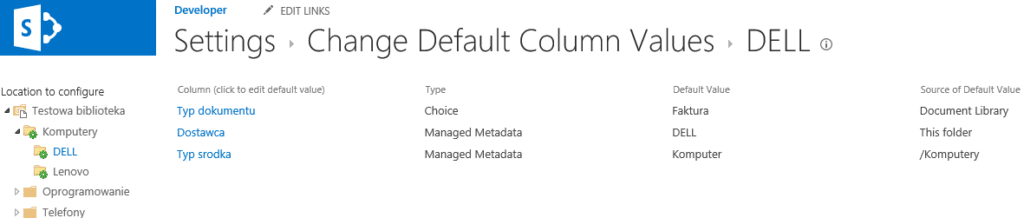
With this feature, we can automatically set tags/ properties for uploaded documents. So if you put something into "DELL" sub folder, SharePoint will set all predefined metadata for the document. With this approach, we achieve a few goals which were not possible previously. We can use drag and drop, we can build navigation based on metadata when we make a synchronization to the local computer we have a nice folder view. It's very useful if we create two views: one with all folders and the other with metadata only.
I hope that this short post shows you how we can use different approaches to get better results in Document management. It will not require to much work from you and the result could be very good for your team. It's a one-time job and your SharePoint will be looking much better.
If you want you can try to build some advanced solution with SharePoint designed. I already wrote about here and here.

Hi.. good article.. makes sense to populate metadata automatically…