
Wake on LAN is very useful option. Unfortunately my latest approach to configure it in Windows 10 was real challenge, but let start from the begging. What is Wake on LAN? In general this feature allow us to turn on remotely our PC. To do this we use Ethernet port – we can’t do this with Wifi. If you know how to make it with Wifi please place solution in the comments. Ethernet port is waiting for magic pocket, when it will be received compute will be turned on.
It’s very useful when we for example travel a lot, and we have some important stuff in our home computer. So instead of always running your PC we can start it remotely. We do our stuff and then turn off it again. And Wake on LAN help us with such approach. It exists for long time, but in latest systems Microsoft has done some modification, which make configuration little challenging. So how to turn on Wake on LAN in Windows 10?
[adblockingdetector id=”5770e6ed85560″]
Wake on LAN BIOS configuration
First and necessary step is to configure our PC BIOS. Those examples are based on Asus Z97-PRO. In this case you have to configure three options:
- Enable Power On By PCI-E . By default this option is disabled
- Then we enable network stack
- After that we can enable Ipv4/Ipv6 PXE Support
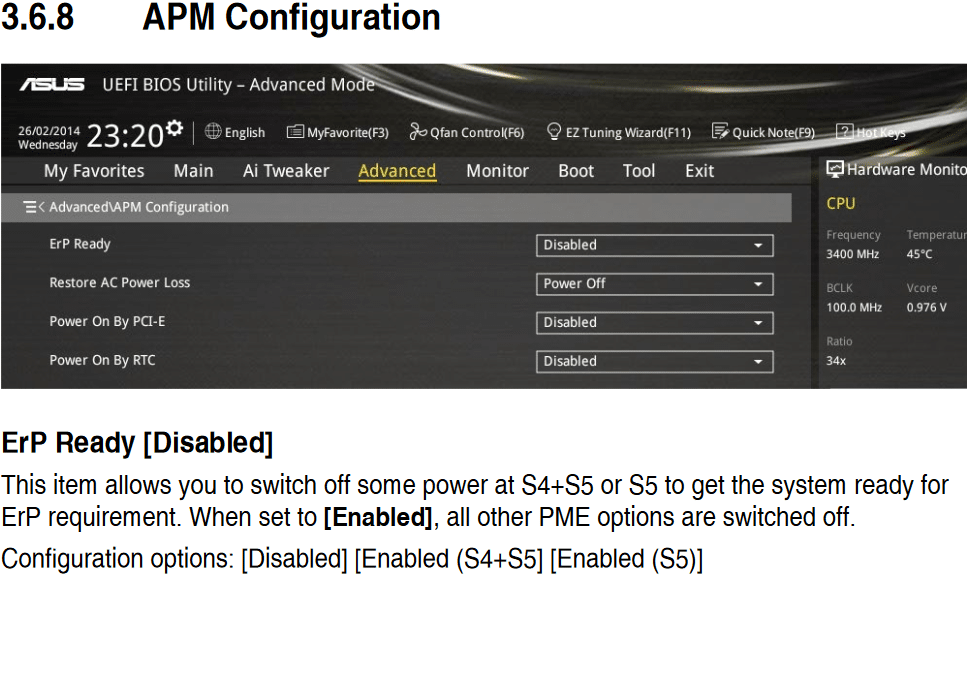
APM configuration
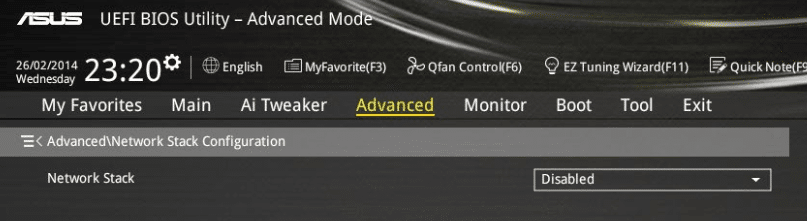
Network stack configuration
Windows 10 Wake on LAN configuration
When our BIOS is properly set up we can do our system configuration. In case of Asus mother board you have download LAN drivers from vendor website. Those installed by default do not work for me. After you installed proper network driver you should be able to see on the network configuration page a few options which should be turned on:
- Wake on Magic Pocket
- Wake on Pattern Match
- Wake on Magic Pocket from power off state
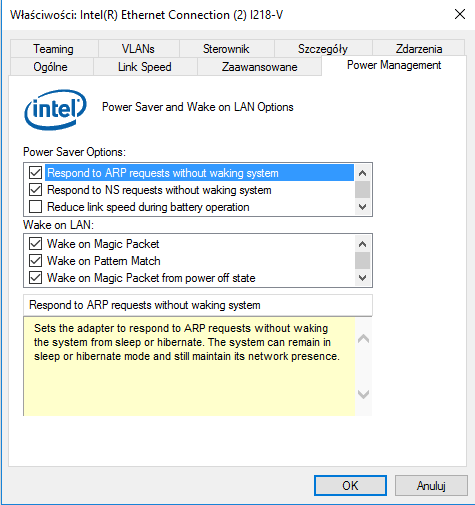
Wake on LAN
And usually that was enough in case of Windows 7. Unfortunately in case of Windows 10 (Windows 8 too) there’s small but very important difference. Those systems get new power schema. And it means that your system must be in sleep or hibernation state to be able to wake up from magic pocket. More details you can find at Microsoft site here. You can configure those setting in power options. If you just shut down your pc you will not be able to wake up it.
Ok, our configuration is ready. Let’s test it. We can make our test with simple software called Wake On Lan. After providing our computer data like MAC and IP address we can send pocket which wake up our pc.
One more thing. Magic pockets are sending out by UDP port 9. We have to remember to allow such traffic with our local router/firewall. If you are little paranoid, just like me, you can use VPN connection to your router. And in this case it will looks like local connection, which should be more safe.




0 Comments