
Did you ever try to use Geolocation column in SharePoint? No? So today I would like to write about something new. I mean that today I am going to write about Geolocation column in SharePoint. This topic is not described to often, which is strange to me as it's very interesting and also it could be very useful. For my tests and coding I will use SharePoint online. Geolocation column is a new feature, which has been introduced in SharePoint 2013. If you are not familiar with this topic you should read first article at MSDN pages. In general new column give us possibility to keep in SharePoint column (Geolocation column) geographical coordinates, which can be used to build nice looking Bing maps with our custom location. Let's see how we can do this.
The first step is to get a key for Bing maps which can be generated at this Microsoft portal. For our needs we can use Basic key, which can be obtained for free. But if you plan to build something big probably you will need paid key. If you get your key you can now activate geolocation columns in your site. By default this option in not active. If you run SharePoint on premise you can use PowerShell script.
[ps]

$WebUrl = "https://mojaWitryna.sharepoint.com/KRMBasicData"
$EmailAddress = “mojUser”
$Context = New-Object Microsoft.SharePoint.Client.ClientContext($WebUrl)
$Credentials = Get-Credential -UserName $EmailAddress -Message “Podaj hasło do Office 365”
$Context.Credentials = New-Object Microsoft.SharePoint.Client.SharePointOnlineCredentials($EmailAddress,$Credentials.Password)
$List = $Context.Web.Lists.GetByTitle(“Moja lista“)
$FieldXml = “<Field Type=’Geolocation’ DisplayName=’Location‘/>”
$Option=[Microsoft.SharePoint.Client.AddFieldOptions]::AddFieldToDefaultView
$List.Fields.AddFieldAsXml($fieldxml,$true,$option)
$Context.Load($list)
$Context.ExecuteQuery()
$Context.Dispose()

[/ps]
Some people says that they were able to run this script against SharePointa online, with SharePoint online management shell. Well, I always get in this case errors. I don't know. Maybe there's a problem with a files version or something... Microsoft make a lot of changes to Office 365 stack. For my environment I used CSOM, as console application. Works perfect for me.
[code language="csharp"]
var webUrl = new Uri("https://mojawitryna.sharepoint.com/Site");
                using (ClientContext ctx = new ClientContext(webUrl))
                {
                    var login = "user";
                    var password = "password";
                    var secureStrPwd = new SecureString();
                    foreach (char c in password)
                    {
                        secureStrPwd.AppendChar(c);
                    }

                    var creds = new SharePointOnlineCredentials(login, secureStrPwd);
                    ctx.Credentials = creds;

                    var web = ctx.Web;
                web.AllProperties["BING_MAPS_KEY"] = "Bing key ";
                 web.Update();

                ctx.ExecuteQuery();

                List officeLocationList = ctx.Web.Lists.GetByTitle("Moja lista");
                officeLocationList.Fields.AddFieldAsXml("<Field Type='Geolocation' DisplayName='Column name'/>", true,AddFieldOptions.AddToAllContentTypes);
                try
                {
                    officeLocationList.Update();
                    ctx.ExecuteQuery();
                }
                catch (Exception)
                {

                    throw;
                }

 [/code]
And that's all. Please note that our code adds column to existing list! You can't just activate geolocation column and then add it later to the list with browser. You have to always use code to add such column to the specific list.
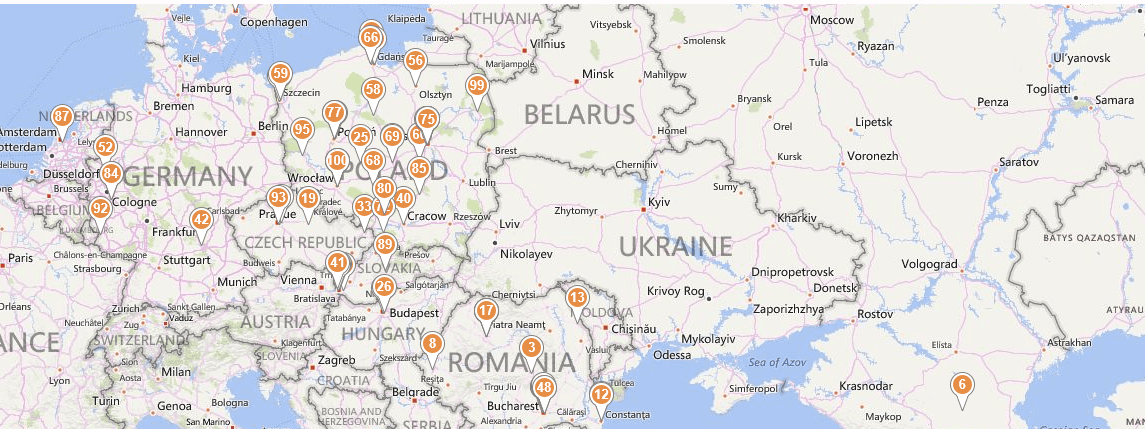
Above you can see a map which displays our location base on the data in SharePoint list. By default you can't create such view in SharPoint list. But when you activate geolocation column you will get new view template called "Map View". There's one more thing. Geolocation data is difficult to add to the list. In my next post I will show you how to make in easy way.



0 Comments